

Getting organized starts with two fundamentals: knowing what needs to be done and having a clear place to put that work. In todo.io, everything is built around boards and tasks, giving you a simple structure that works whether you’re planning your day or managing ongoing projects.
If you’re new to todo.io, the goal isn’t to build a perfect system on day one. The goal is to get tasks out of your head and into a space where you can see, prioritize, and actually finish them.
What is a board in todo.io?
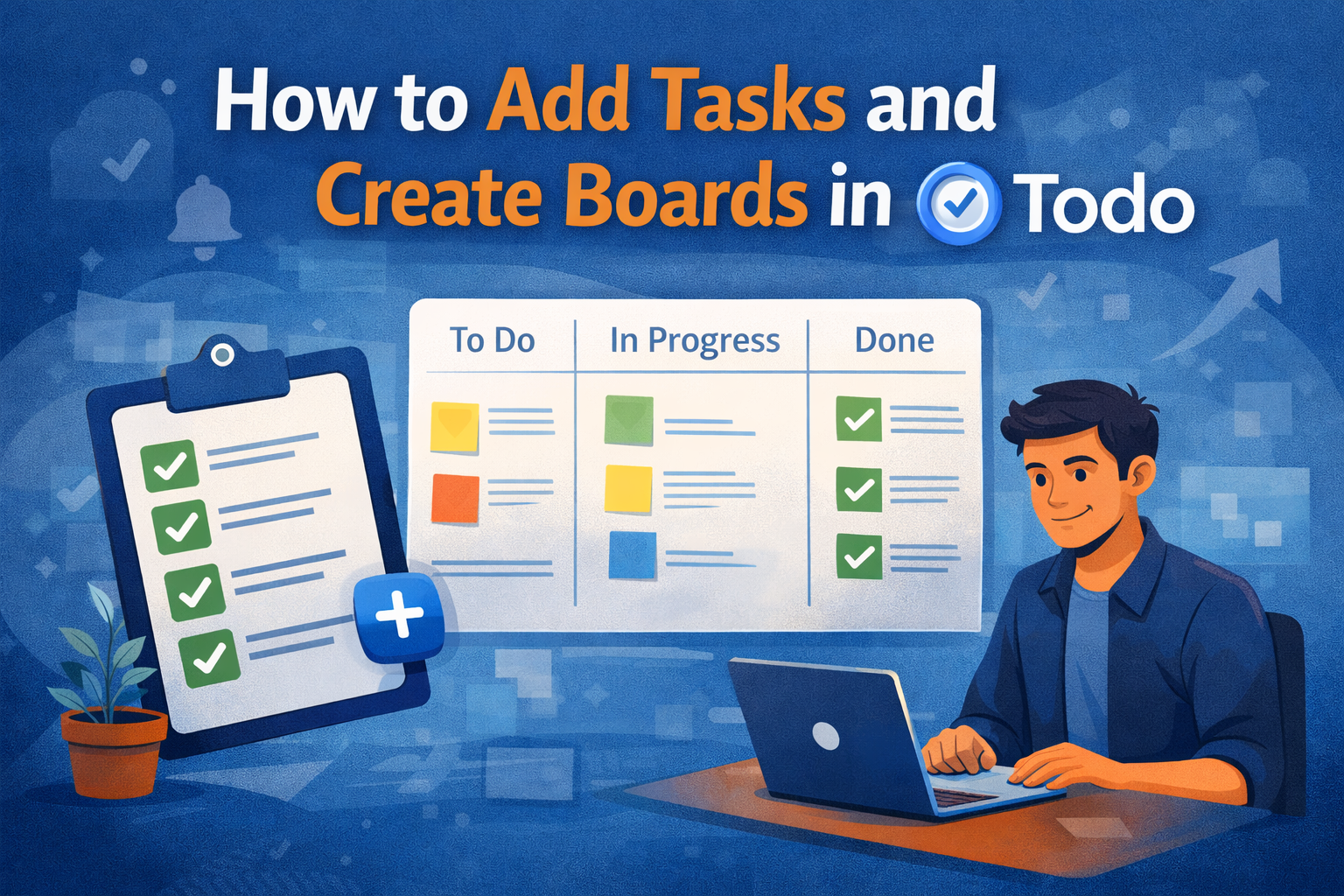
A board is a workspace that groups related tasks together. You might create boards for things like “Work,” “Personal,” “This Week,” or a specific project you’re focused on. Boards give your tasks context, so you’re not staring at one long, overwhelming list of unrelated items.
Creating a board is intentionally quick. You add a name, and that board becomes a dedicated place for tasks connected to that area of your life or work. Many people ask whether they should create lots of boards or just a few. A good rule of thumb is to start small. You can always add more boards later as your system evolves.
How do you add tasks in todo.io?
Adding a task is designed to be fast, because capturing work quickly is what prevents mental clutter. When you create a task, focus on making it clear and actionable. Instead of vague entries like “Website” or “Planning,” write tasks that describe a concrete outcome, such as “Outline homepage sections” or “Review project timeline.”
If a task feels too large, break it down. todo.io supports subtasks so you can turn a big piece of work into smaller steps that are easier to start and easier to finish. This is especially helpful for tasks that tend to get postponed because they feel intimidating.
How should you organize tasks across boards?
A common question is whether tasks should live on multiple boards or just one. In todo.io, boards act like containers, not rigid rules. Tasks can be moved as priorities change, which makes it easy to adapt when your focus shifts midweek.
For example, you might keep a general “Backlog” board for ideas and future work, then move tasks into a “This Week” board during your planning session. This keeps your active board clean and focused, while nothing important gets lost.
How many tasks should you have at once?
More tasks don’t equal more productivity. Most people work best when they limit what they actively commit to. During daily or weekly planning, choose a small set of tasks that truly matter. todo.io makes this visible, so you’re not constantly distracted by everything you could be doing instead.
Why boards and tasks work together
Boards give you structure. Tasks give you momentum. When combined, they create a system that’s flexible enough for real life but structured enough to keep you moving forward. You’re not just tracking work—you’re designing how your time and attention are spent.
If you’ve been wondering how to add tasks, create boards, and actually stick with a task management system, start simple. Create one board, add a few clear tasks, and let the system grow with you. That’s exactly what todo.io is built for.
Blog
>
How to Add Tasks and Create Boards in todo.io
How to Add Tasks and Create Boards in todo.io
Jan 20th, 2026
Get Started For Free
A faster way to capture, organize, and finish work. Get started for free
-

Flexible Boards
-
Clear Priorities
Get Started For Free
A faster way to capture, organize, and finish work. Get started for free
-
Flexible Boards
-
Clear Priorities